When creating an accessible PDF, it’s important to include a document title and follow best practices regarding accessible fonts, headings, and color contrast. Details on color contrast/accessibility can be found on the Self-Paced Learning for Colors. Additionally, PDFs rely heavily on a hidden structural layer called tags to communicate with screen readers and assistive technologies. This page will consist of key requirements for making PDFs accessible and how to do so.
- Overview
- Setting up Acrobat Pro
- Document Title & Author
- Tags in PDF Documents
- Descriptive Tagged Hyperlinks
- True Tables
- PDF Accessibility Checklist
- External Resources
Overview
The following serves as an overview of the main considerations and actions to take to improve the accessibility of your PDFs:
- Add accessibility tools to Acrobat Pro.
- Include a document title.
- Use accessible fonts and ensure sufficient color contrast.
- Images should have alt text unless marked as decorative.
- Describe hyperlinks appropriately with text display.
- Tables must be easily navigable using correct tags.
- Tag Tree should include headers, tables, lists, etc.
- Reading Order needs to be logical for screen readers and tabbing.
Setting up Acrobat Pro
Steps to add the accessibility tools:
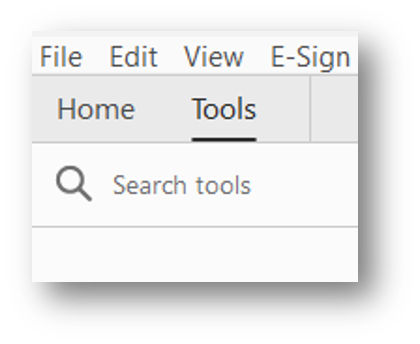
- Open Tools Search: Launch Acrobat Pro, click the Tools tab at the top left, and locate the search bar.
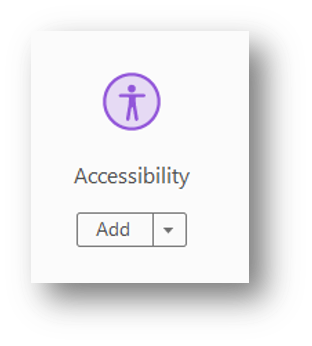
- Add the Accessibility Tool: Type “Accessibility” into the search bar. Under the Accessibility icon, click Add to pin it to your right-hand shortcut menu.
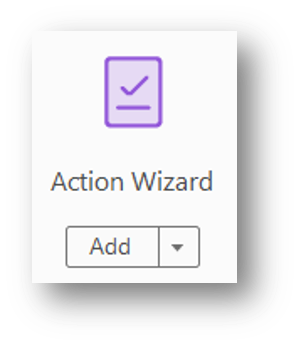
- Add the Action Wizard: Clear the search bar, type “Action Wizard”, and click Add to pin it right alongside your accessibility tools.
- Launch “Make Accessible”: Click Action Wizard from your new right-hand menu, then select Make Accessible from the Actions List.
- Run on Untagged PDF: Click Start. The wizard will automatically prompt you to add descriptions, set the language, and Autotag your untagged PDF before running a Full Check.
Steps to add the accessibility icons:
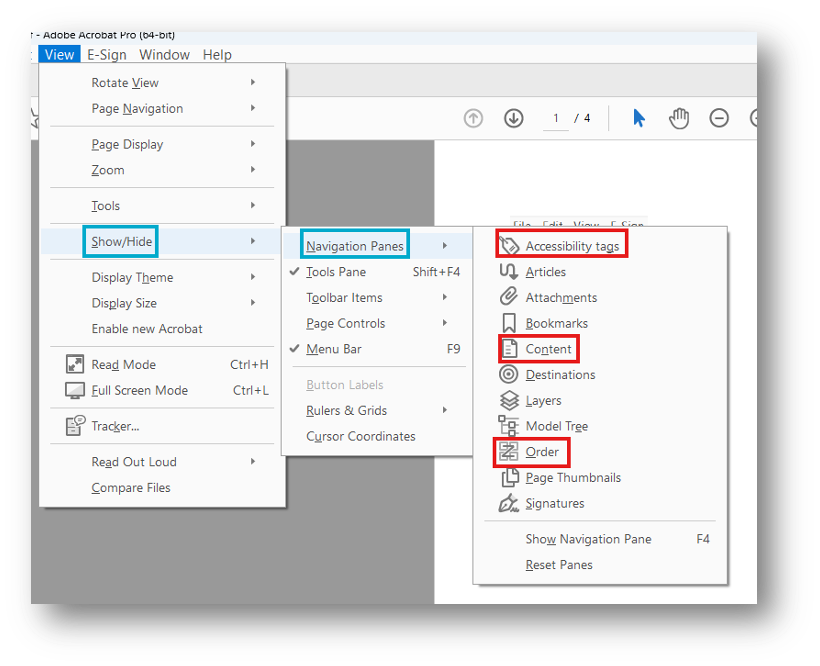
- Content Panel
- View > Show Hide > Navigation Panes > Content
- Order Panel
- View > Show Hide > Navigation Panes > Order (turn off Display like elements in a single block)
- Tag Tree
- View > Show Hide > Navigation Panes > Tags
Document Title & Author
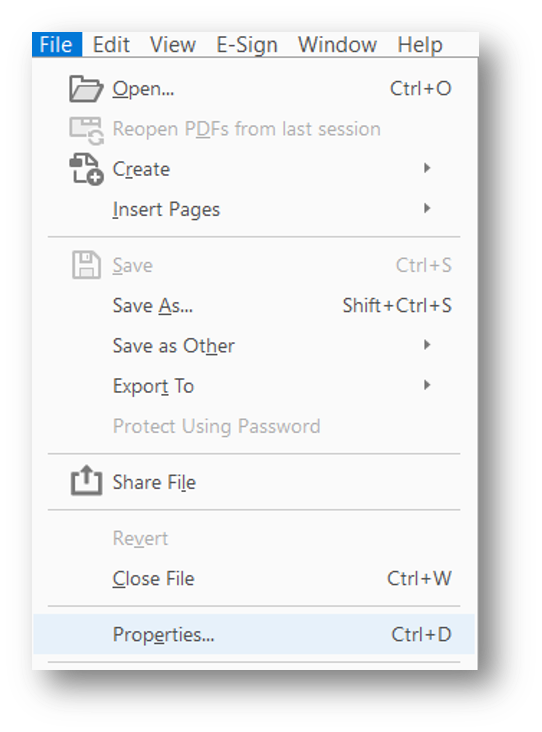
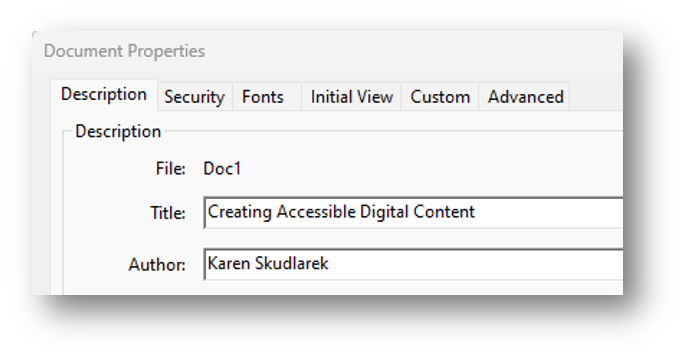
To add a document title and author, navigate to the following:
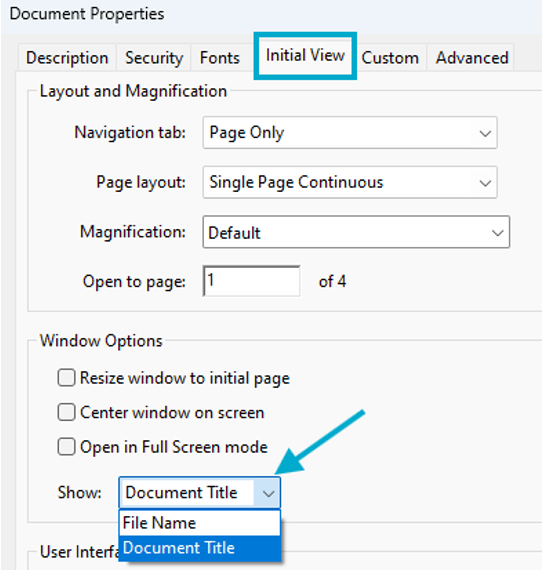
- File > Properties > Initial View > Show > Document Title
- Set Initial View to “Document Title” in Document Properties.
Tags in PDF Documents
Tags Overview
Tags store metadata
- Tags contain information on objects and their relation to one another.
Tags organize information
- Allows screen readers and similar to interpret and parse information.
There are many options with PDF tagging
- Websites have over 100 types of tags, while PDFs have about 40 types.
Tags can be grouped and organized
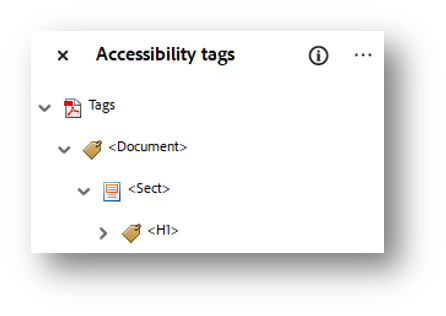
- Container tags like Document help to organize child tags such as Paragraph.
More useful information about tags
- Document, Section, Part, Article are container tags that screen readers ignore
- However, these are often used by remediators.
- <Document> is always the root tag.
- InDesign gives more Article tags while PowerPoint gives more Section tags.
Most Common Tags
- Document (as root tag)
- Headings (1-6) for navigation with screen readers
- Paragraph
- Figure
- Link
- Nested Tags
- List (L, LI, Lbl, Lbody)
- Table (THead, TR, TH, TD, TBody)
Header Tags
- Headers should follow H1-H6 nesting structure.
- Titles for headers need to be distinct.
- Only one <H1> is permitted within a document.
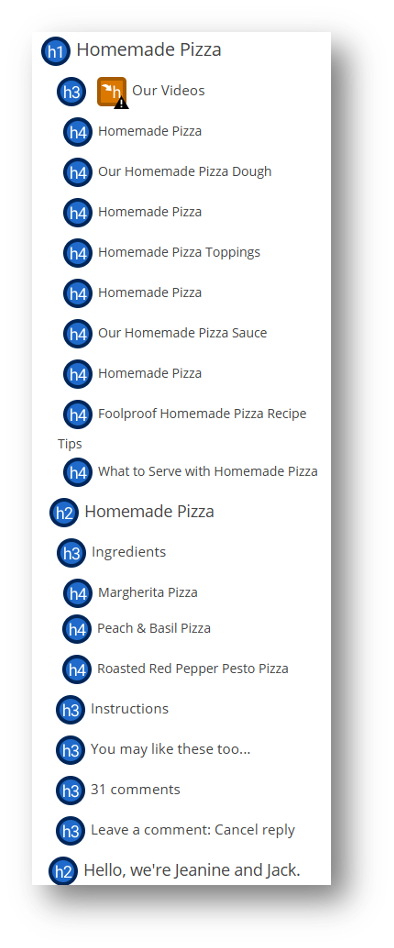
Figure Tags
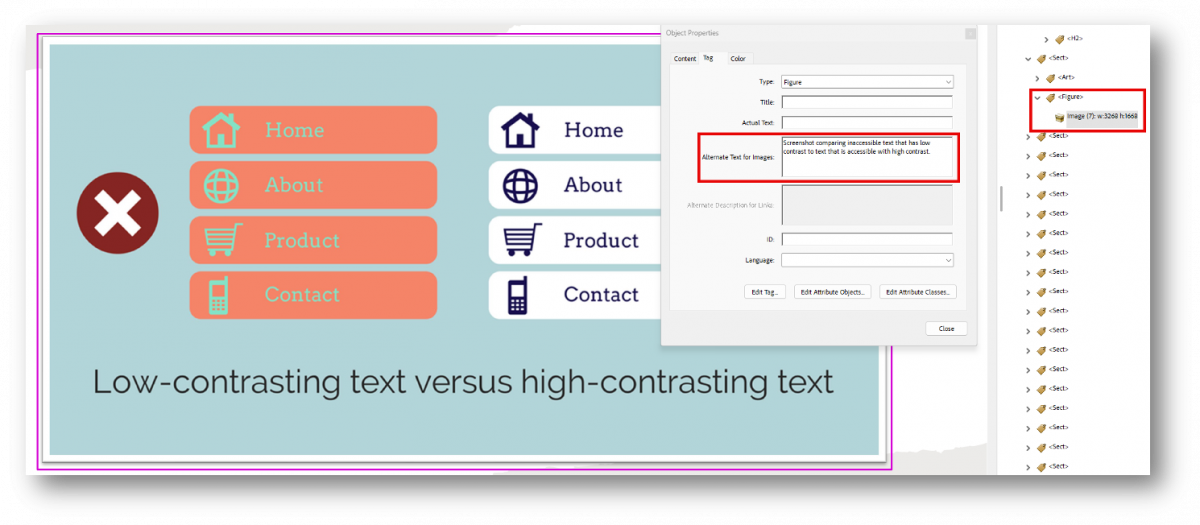
Figure tags are for tagging example images. Tag example images with <Figure>.
List Tags
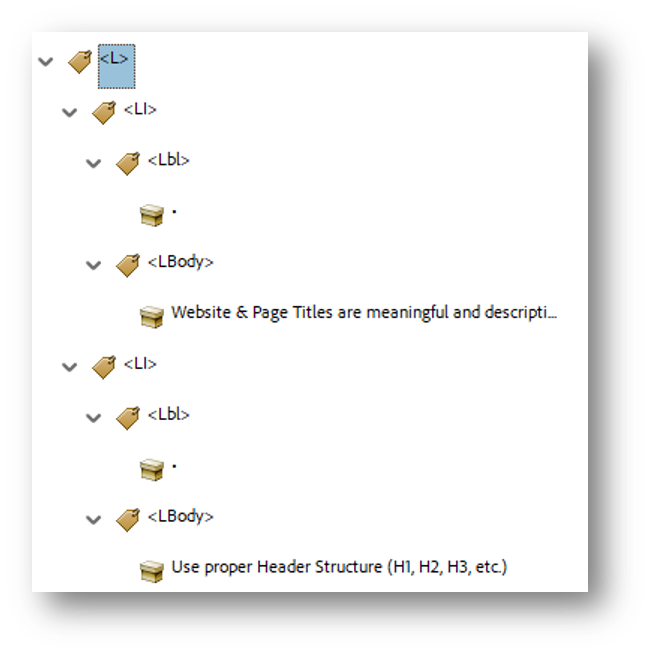
List tags are for tagging lists. Use the following tag structure:
- L (List)
- LI (List Item)
- Lbl (Label – bullet, number, etc.)
- Lbody (text of the list item)
- LI
- Lbl
- Lbody
- LI (List Item)
Descriptive Tagged Hyperlinks
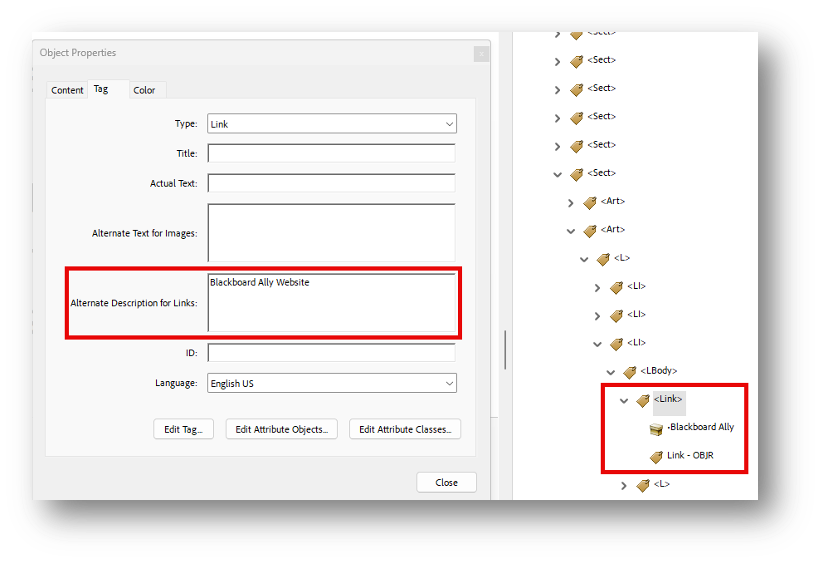
- Screen reader users navigate websites tabbing link to link.
- Write text display to indicate link page.
- Do not use “click here,” “learn more,” “read more” as text display.
- Example: BlackBoard Ally
- Don’t underline text that isn’t a link.
- Keyboard only users may think it’s a link and can’t access it by tabbing.
True Tables
- Use only data for tables.
- Designate top row as the header for each column and/or row
- Table must start with a <Table> tag.
- One table row () tag per row, including header row(s).
- All headers should be retagged as <TH>, whether a row or column.
Additional Notes about True Tables
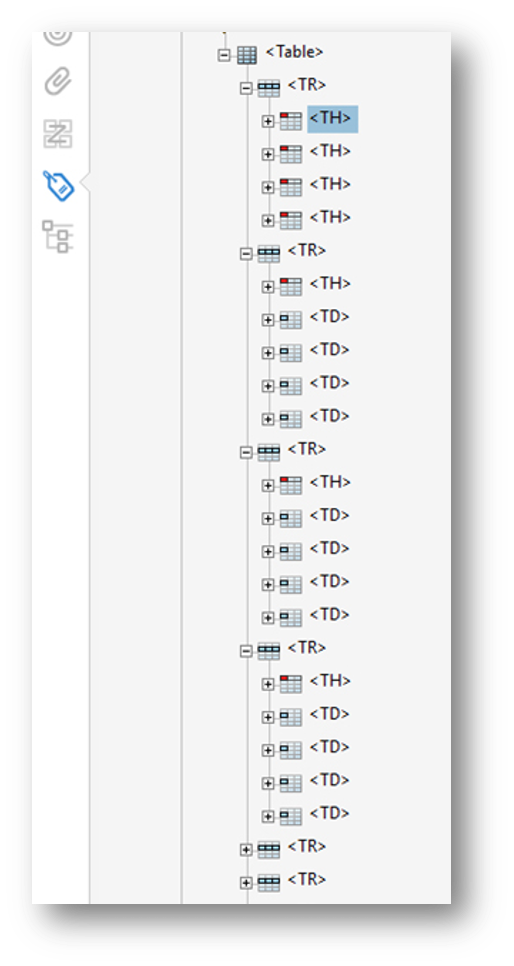
Select the <Table> tag to expand a list of table rows (<TR>). You should have one <TR> tag for each row in the table including the header row(s).
If the first row of the table is a header row, double click on each column (<TD>) to rename the element as a <TH>
The first column of the table may also be used as a header. If so, expand each of the remaining Table Rows (<TR>). In each table row, change the first <TD> tag to a <TH> tag to mark it as a table header.
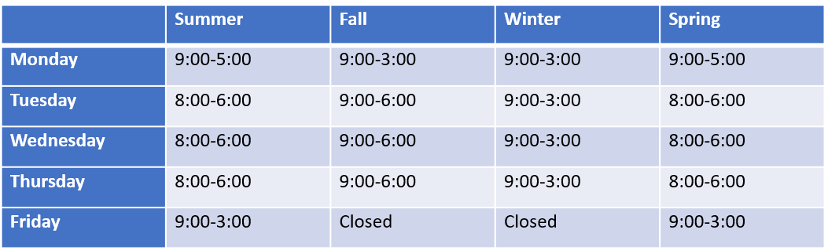
Tagged Table Example
- First tagged row contains tags for headers.
- Remaining <TR> tags include data tagged as <TD> with first column all marked as <TH>.
PDF Accessibility Checklist
Use this checklist to make sure that you’re meeting the accessibility requirements for PDFs:
Accessible PDF Checklist
- Add accessibility tools to Acrobat Pro.
- Presence of a document title.
- Alt text for images (verify auto generated alt text).
- Descriptive hyperlinks with correct tagging.
- True tables with correct tagging.
- Adequate color contrast (Acrobat Pro does not check for color contrast)
- Proper Tag Tree (Headers, Figures, Paragraphs, Links, Tables, Lists).
- Logical Reading Order for screen readers and tabbing.
External Resources
- PDF Accessibility Checker 2024 (free) for Windows only
- Blackboard Ally (HuskyCT)
- Can upload files into HuskyCT with course or organization access.
- Email karen.skudlarek@uconn.edu for course access, if necessary.
- Ally will assign an accessibility score to any uploaded file.
- Scans PDF, DOCx, and PPTx.
- Acrobat Pro
- Doesn’t check reading order or color contrast.
- Has an Optical Character Recognition (OCR) option to extract text.
- Very technical.