Introduction
- Non-text elements such as images must be perceivable by all users, including those with visual impairments.
- To support this, meaningful images that convey information must include alternative text (alt text).
- Alt text is a brief, descriptive text that is not visually displayed on the page but is programmatically associated with the image.
- It is announced by screen readers to users who are blind or visually impaired, helping them understand the purpose or content of the image.
- Alt text also benefits sighted users when images fail to load, ensuring that the core message of the image is still conveyed.
When to Use Alt Text
- Informative images such as charts, product images, classroom discussions, etc.
- Functional images such as icons that serve as a link.
- An image that adds no additional information can be marked as decorative.
Benefits
- Supports screen reader users by conveying the purpose of images, icons, and charts.
- Improves comprehension when images fail to load or are blocked by the browser
- Enables equal access to visual information for people with visual disabilities.
How to Write Effective Alternative Text
Concise and Descriptive
- Keep it short (typically under 125 characters) while clearly describing the essential content or function of the image.
- Do not use these characters in your alternate text: # % & ‘ ^ ` ~ + ; = ) ( \ / : * “ < > | [ ]
Meaning, Not Appearance
- Focus on what the image conveys rather than its visual details.
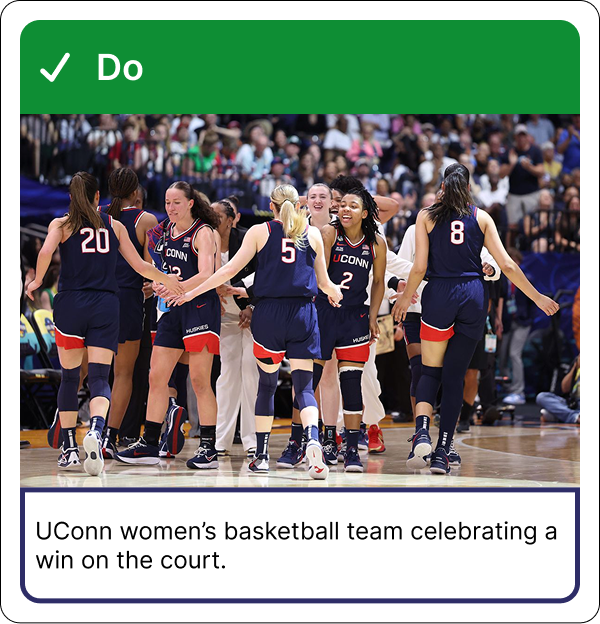
- Example, “Smiling student holding a certificate” instead of “A person with a blue shirt standing in front of a brick wall”.
- Do not include every detail of the image in the alt text.
Avoid Redundancy
- Do not repeat information already provided in surrounding text or labels.
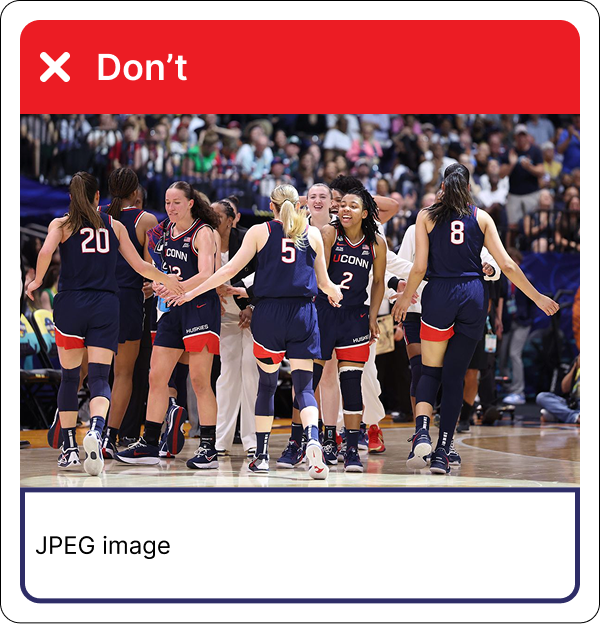
- Example, don’t say ” Image of …” as screen readers identify images by default and announce them to users.
Functional Images
- If the image is a link or button, describe its function, not its appearance.
- Example: “Search” instead of “Magnifying glass”.
Decorative Images
- Use empty
alt=""for purely decorative images so screen readers skip them. - If your content can be understood by your users without the image then that image can be marked as decorative
- Avoid using decorative images as links.
Alt Text for Word and PowerPoint Documents
Summarize Graphs and Charts
- Include only salient or key takeaway, not every data point.
- Example: “Line graph showing a steady increase in enrollment from 2015 to 2025.”
Avoid Duplicating Captions
- Avoid repeating captions word-for-word unless they are critical for understanding.
- Alt text and captions should complement each other.
Use the Accessibility Checker
- Go to Review > Check Accessibility to find missing or incorrect alt text in Word or PowerPoint.
- Please refer to the How to Write Effective Alternative Text above to learn more about writing accessible alt text.
Steps to Write Alt Text
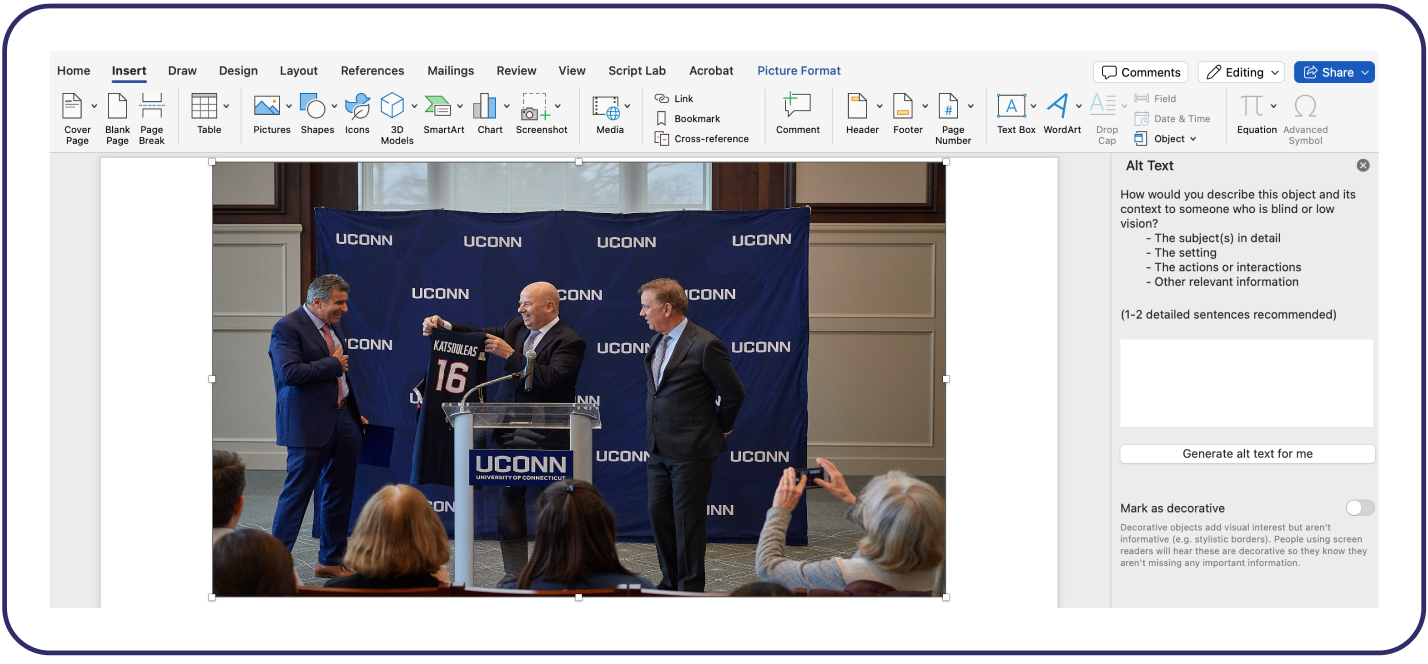
- Right-click on the image or object.
- Select “View Alt Text” from the context menu.
- Type a short, meaningful description of the image in the text box or use AI to generate the alt text, however double check to ensure it is accurate.
- If the image is decorative, check the box that says “Mark as decorative“.
- Your alt text is saved automatically.
It is paramount to note that we still need to verify AI-generated alt text thoroughly as they are not always accurate.

Creating Alt Text for QR Codes
Alt text for QR codes are very essential for users who are visually impairment and cannot visually scan the code and therefore rely on screen readers like NVDA and VoiceOver to access it.
Convey Purpose, Not Technical Description
- ❌ Avoid: “QR code”
- ✅ Use:
"<img src="qr-code.png" alt="QR code linking to our accessibility guide">"or"Scan to access the accessibility resources page". - ✅ Example: “QR code linking to accessibility-guide”.
Avoid Vague Alt Text
- ❌ “Scan this QR code.”
- ❌ “Image with QR code.”
